Getting Started with TechWrit AI
Get from sign-up to your first style-checked document in under five minutes.
Create an account
- Go to techwrit.ai and select Get started.
- Sign up with your email or a social provider.
- Your account opens to the workspace on the Free tier: 20 requests per month, all 17 modes.
The workspace
The workspace has three areas:
- Sidebar (left) — New Chat, History, Features, Docs, and your user menu.
- Context bar — Dropdown selectors for Audience, Doc Type, Mode, Framework, and Prompt Library.
- Content input — A text area where you paste or enter your content.
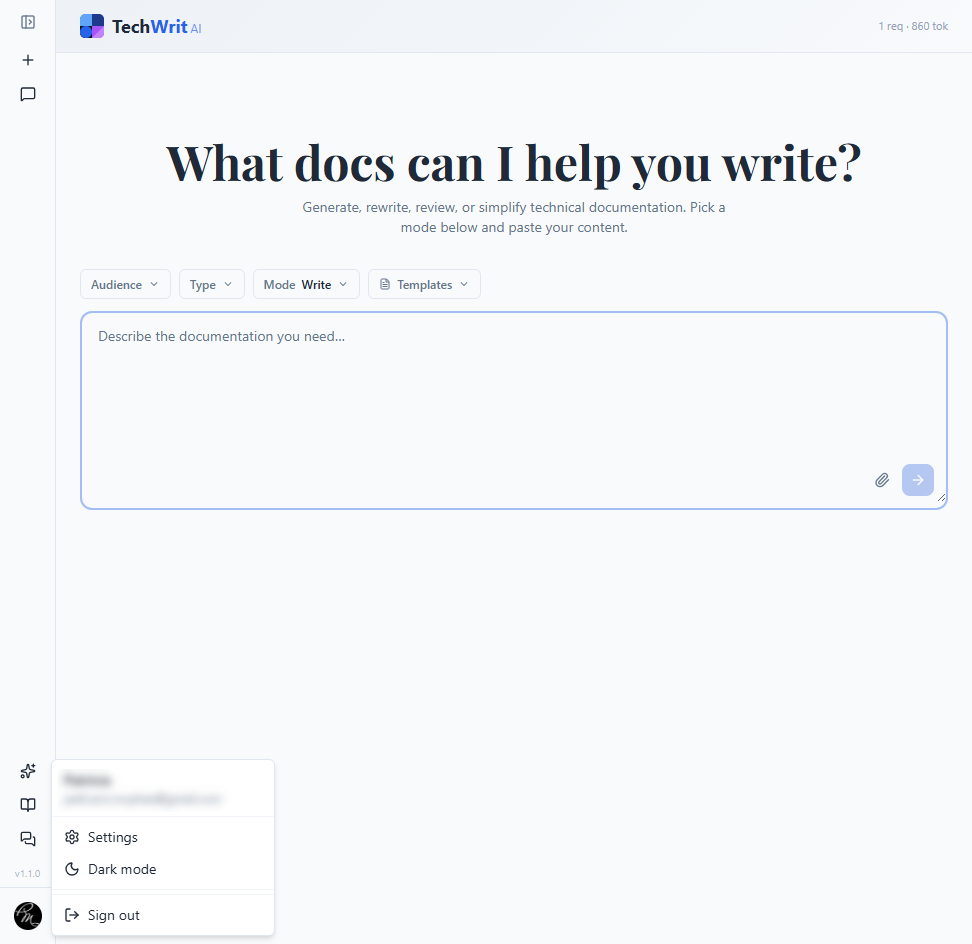
[PLACEHOLDER: replace screenshot with an annotated version showing numbered callouts on Sidebar (1), Context bar (2), and Content input (3).]
Your first request
When the workspace is empty, it shows quick-start cards — task-framed entry points such as "Review my draft" or "Write from scratch." Select one to set the matching mode for you, then go straight to entering your content. To choose everything yourself, follow these steps:
-
Pick a mode. The default is Review (detailed feedback with severity-ranked suggestions). Switch to Write, Rewrite, or any other mode using the Mode dropdown.
-
Set context (optional). Choose an Audience (for example, Developers) and a Doc Type (for example, application programming interface (API) reference) to tailor the output.
-
Enter your content. Paste existing documentation or describe what you need.
You have two alternatives to pasting:
- Select the paperclip icon to upload files directly — source code, Markdown, plain text, or Word documents (
.docx). See Supported file types for the full list. - Select a prompt from the Prompt Library dropdown to pre-fill the input with a structured prompt, then replace the placeholders with your details.
- Select the paperclip icon to upload files directly — source code, Markdown, plain text, or Word documents (
-
Submit. Select the arrow button or press
Ctrl+Enter(Cmd+Enteron macOS).
The artificial intelligence (AI) response appears below the input with token usage displayed. Review-mode output opens with a Strengths section that notes what the draft already does well before it lists the issues to fix.
[PLACEHOLDER: add a screenshot of a sample Review-mode response with severity-ranked suggestions visible.]
The response uses TechWrit AI's defaults. To enforce your team's specific conventions, see Configure your standards next.
Configure your standards
Configuring your standards is what makes TechWrit AI enforce your team's conventions rather than generic best practices. Open Settings from the user menu in the sidebar (about five minutes):
- Review the 27 default style rules. These rules cover active voice, sentence length, heading case, jargon, and more. Turn off any that don't match your team's conventions.
- Add terminology substitutions. These are the word-choice rules your team enforces: "select" not "click," "repository" not "repo." The AI enforces these in every mode, every request.
- Add product glossary terms. Include definitions and synonyms. When you define "webhook" with a synonym "callback URL," the AI uses the correct definition when writing and flags misuse in reviews.
- Set custom instructions for rules that don't fit the other categories: "Always use Oxford commas," "Target a 9th-grade reading level."
After you finish configuring, every request — across all 17 modes — enforces your standards automatically. See Settings for the full reference.
For teams, the Team plan locks shared rules, terminology, and glossary for all members. New writers inherit your standards from day one — no shared configuration file required.
What happens next
The output displays action buttons below it:
- Feed to Review — Pastes the output into the input, switches to Review mode, and submits automatically. Use this action after a Rewrite to verify compliance, or after Write to get editorial feedback on generated content.
- Keywords — Extracts search keywords from the output.
- Gen Glossary — Generates a glossary section from the output.
To adjust the output without rewriting your input, use the Refine bar below it. One click re-runs the output as shorter, more formal, more detail, or simpler. Each refinement creates a new version, and the output keeps a version history so you can step back to an earlier result. You can also edit the output inline to fix a detail by hand. If a long response stops before it finishes, select Continue generating to pick up where it left off.
Use the Reset button in the context bar to clear selections and start fresh.
Next steps
- Modes — The 17 purpose-built modes and when to use each one.
- Docs from Code — Generate API references, developer guides, and user guides from your source code.
- Best Practices — Tips for chaining modes, using diffs, and getting better results.
- Use Cases — Real scenarios: continuous integration and continuous delivery (CI/CD) linting, team onboarding, API doc generation, and more.
- Pricing — Free tier, Pro, and Team plans.
Reference
Supported frameworks
If your documentation site uses a docs-as-code framework, select it from the Framework dropdown in the context bar. The AI formats output using that framework's conventions — frontmatter, callouts, tabs, and components — so the output is ready to commit without a formatting pass.
Three frameworks are supported:
- Trellis Docs — Next.js Markdown with JSX (MDX) including callouts, tabs, code highlighting, custom components, and search-indexed frontmatter.
- Docusaurus — React-based MDX with admonitions, tabs, versioned docs, sidebar ordering, and tag or keyword frontmatter.
- Notion — Markdown optimized for Notion's block system with callout blocks, toggles, to-do lists, and database property references.
When no framework is selected, output uses standard Markdown.
Supported file types
Use the paperclip icon to upload files. TechWrit AI accepts:
| Category | Extensions |
|---|---|
| Documents | .md, .txt, .docx |
| Code | .js, .ts, .tsx, .jsx, .py, .go, .java, .cs, .rb, .rs, .c, .cpp, .h, .hpp, .swift, .kt, .php |
| Shell | .sh, .bash |
| Data or config | .yaml, .yml, .json, .xml |
| Web | .html, .css, .scss |
| Database | .sql |
Word document handling
On upload, TechWrit AI converts Word documents (.docx) to Markdown, preserving headings, lists, tables, and formatting. You can import content from tools such as Confluence, Google Docs, or Microsoft Word for review or rewrite.