Getting Started With TechWrit AI
Get from sign-up to your first style-checked document in under five minutes.
Create an account
- Go to techwrit.ai and select Get started.
- Sign up with your email or a social provider.
- You land in the workspace with the Free tier (20 requests/month, all 17 modes).
The workspace
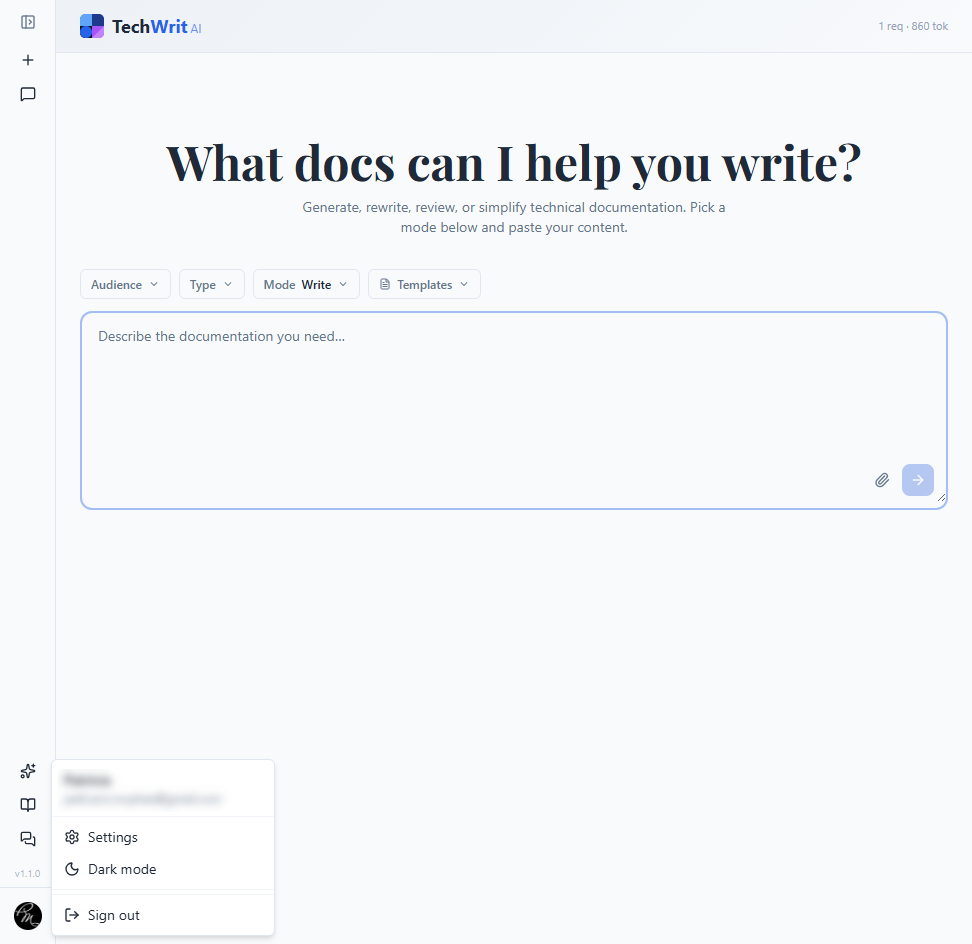
The workspace has three areas:
- Sidebar (left) — New Chat, History, Features, Docs, and your user menu.
- Context bar — Dropdown selectors for Audience, Doc Type, Mode, Framework, and Prompt Library.
- Content input — A text area where you paste or enter your content.
Your first request
- Pick a mode. The default is Review (detailed feedback with severity-ranked suggestions). Switch to Write, Rewrite, or any other mode using the Mode dropdown.
- Set context (optional). Choose an Audience (e.g., Developers) and a Doc Type (e.g., API reference) to tailor the output.
- Enter your content. Paste existing documentation or describe what you need. You can also select the paperclip icon to upload files directly — source code, Markdown, plain text, or Word documents (
.docx). Or select a prompt from the Prompt Library dropdown to pre-fill the input with a structured prompt — just replace the placeholders with your details. - Submit. Select the arrow button or press
Ctrl+Enter(Cmd+Enteron Mac).
The AI response appears below the input with token usage displayed.
Configure your standards
This is where TechWrit AI stops being "just another AI tool." Open Settings from the user menu in the sidebar and spend five minutes setting up your rules:
- Review the 25 default style rules. These cover active voice, sentence length, heading case, jargon, and more. Turn off any that don't match your team's conventions.
- Add terminology substitutions. These are the word-choice rules your team enforces: "select" not "click," "repository" not "repo." The AI enforces these in every mode, every request.
- Add product glossary terms. Include definitions and synonyms. When you define "webhook" with a synonym "callback URL," the AI uses the correct definition when writing and flags misuse in reviews.
- Set custom instructions for rules that don't fit the other categories: "Always use Oxford commas," "Target a 9th-grade reading level."
Once configured, every request — across all 17 modes — enforces your standards automatically. See Settings for the full reference.
On a team? Use the Team plan to lock shared rules, terminology, and glossary for all members. New writers get your standards from day one — no config file to share.
What happens next
Action buttons appear below the output:
- Feed to Review — Pastes the output into the input, switches to Review mode, and submits automatically. Use this after a Rewrite to verify compliance, or after Write to get editorial feedback on generated content.
- Keywords — Extract search keywords from the output.
- Gen Glossary — Generate a glossary section from the output.
Use the Reset button in the context bar to clear selections and start fresh.
Target a docs framework
If your documentation site uses a docs-as-code framework, select it from the Framework dropdown in the context bar. The AI formats output using that framework's conventions — frontmatter, callouts, tabs, and components — so the output is ready to commit without a formatting pass.
Three frameworks are supported:
- Trellis — Next.js MDX with callouts, tabs, code highlighting, custom components, and search-indexed frontmatter.
- Docusaurus — React-based MDX with admonitions, tabs, versioned docs, sidebar ordering, and tag/keyword frontmatter.
- Notion — Markdown optimized for Notion's block system with callout blocks, toggles, to-do lists, and database property references.
When no framework is selected, output uses standard Markdown.
Supported file types
Use the paperclip icon to upload files. TechWrit AI accepts:
| Category | Extensions |
|---|---|
| Documents | .md, .txt, .docx |
| Code | .js, .ts, .tsx, .jsx, .py, .go, .java, .cs, .rb, .rs, .c, .cpp, .h, .hpp, .swift, .kt, .php |
| Shell | .sh, .bash |
| Data / Config | .yaml, .yml, .json, .xml |
| Web | .html, .css, .scss |
| Database | .sql |
Word documents (.docx) are converted to Markdown on upload, preserving headings, lists, tables, and formatting. This makes it easy to import content from tools like Confluence, Google Docs, or Microsoft Word for review or rewrite.
Next steps
- Modes — See what each of the 17 modes does and when to use it.
- Best Practices — Tips for chaining modes, using diffs, and getting better results.
- Use Cases — Real scenarios: CI/CD linting, team onboarding, API doc generation, and more.
- Pricing — Free tier, Pro, and Team plans.